University of Bath
Research Computing Team (DDaT)
Anatra HPC Documentation
Starting a VNC session
In order to start a VNC session, we load the TurboVNC module and start a server:
mjc62 in anatra-01 in ~
❯ module load TurboVNC

mjc62 in anatra-01 in ~
❯ vncserver -otp

Desktop 'TurboVNC: anatra-01:1 (mjc62)' started on display anatra-01:1

One-Time Password authentication enabled.  Generating initial OTP ...
Full control one-time password: 32534535
Run '/opt/TurboVNC/bin/vncpasswd -o' from within the TurboVNC session or
    '/opt/TurboVNC/bin/vncpasswd -o -display :1' from within this shell
    to generate additional OTPs
Starting applications specified in /opt/TurboVNC/bin/xstartup.turbovnc
Log file is /home/w/mjc62/.vnc/anatra-01:1.log
The -otp flag generates a one-time-password which can be used to log in to the session.
Note that only one session may be run by a user at any time. If we attempt to start another session, we will see an error:
mjc62 in anatra-01 in ~
❯ vncserver
You are already running a VNC session for mjc62 user. Maximum session is limited to 1 per user!
Run 'vncserver -list' to list the current session


mjc62 in anatra-01 in ~
❯ vncserver -list

TurboVNC sessions:

X DISPLAY # PROCESS ID  NOVNC PROCESS ID
:1      14305
This session will persist after closing the terminal, but will autokill itself after 6 hours. In order to end a session early, the -kill flag can be used with the vncserver command:
mjc62 in anatra-01 in ~
❯ module load TurboVNC

mjc62 in anatra-01 in ~
❯ vncserver -kill :1
Killing Xvnc process ID 15717
Connecting to the VNC session
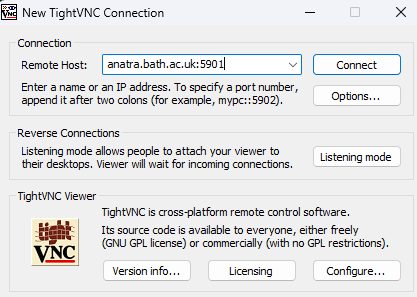
In order to connect to the VNC session, you must be connected to the University VPN. On windows, users can use TightVNC, whilst on MacOS the built in "Screen Sharing" application can be used.
The port you must connect to corresponds to the number of the server you are running (5900 + [display number]).
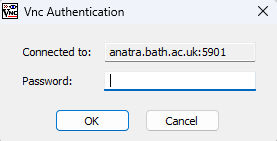
For example, if you are running on display :1, then the url you should connect to is anatra.bath.ac.uk:5901, using the one-time-password to log in to the VNC session:
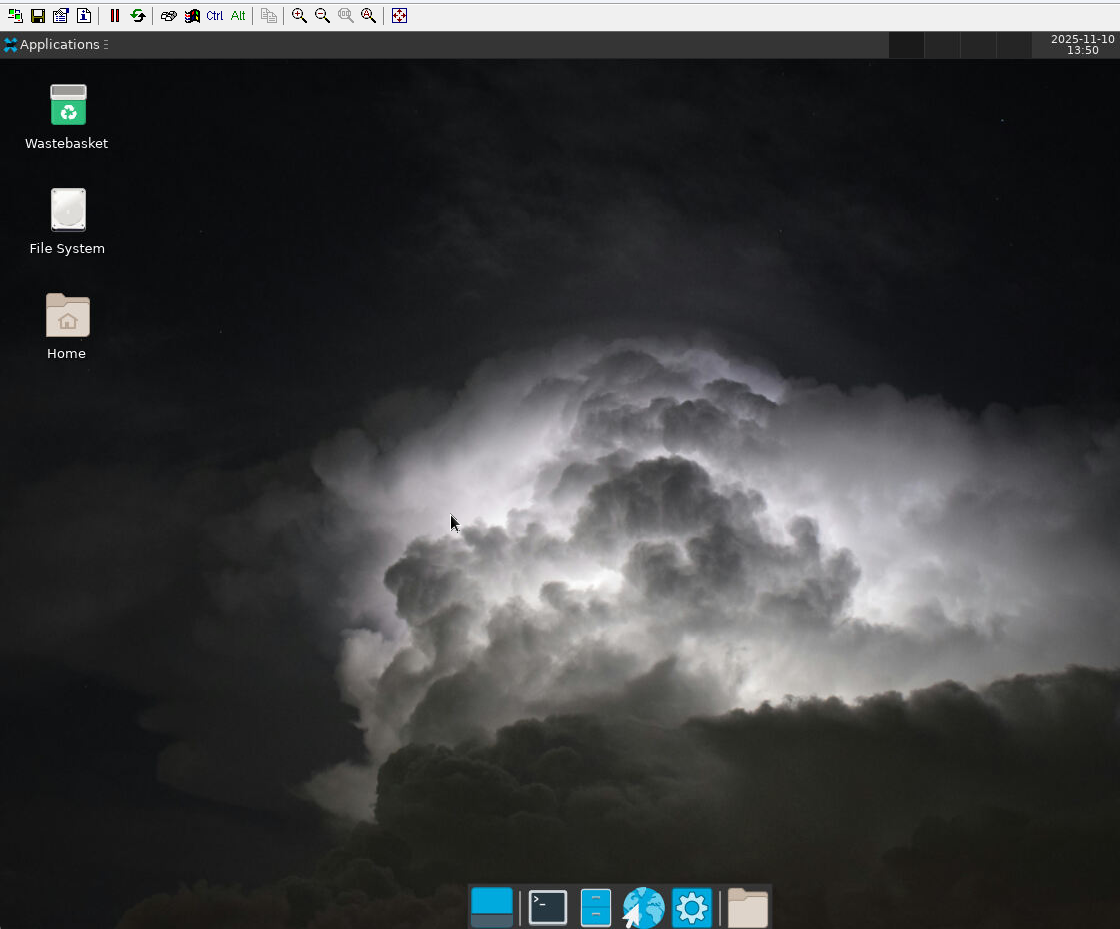
You will then be presented with a desktop environment.
Starting a GaussView session
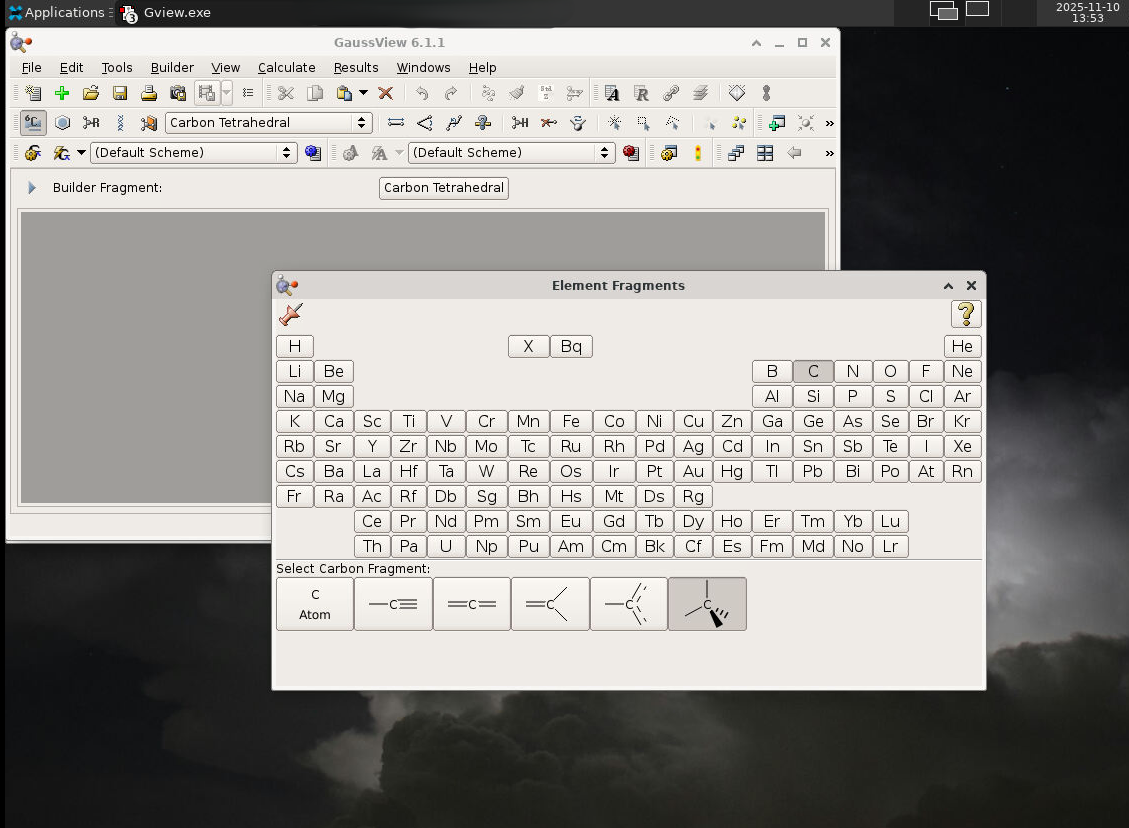
From the desktop view, GaussView can be started by opening a terminal and running the commands shown below:
# Load GaussView module
module load gaussview


# Open GaussView application
gview