University of Bath
Research Computing Team (DDaT)
Nimbus HPC Documentation
Compute Instances
Slurm partitions
The new HPC service Nimbus provides user access to an array of different compute instances. These instances are accessed through different Slurm partitions.
To list the partitions, issue the following command:
sinfo
This will list the partitions, the nodes in each partition, their availability and their current state.
The partitions follow a naming convention:
[pricing tier]-[instance type]-[no of cpus-per-node]
So, for example, the partition spot-hbv3-120 is for spot-priced hbv3 instances with 120 CPUs per node, while paygo-hc-44 is for pay-as-you-go-priced hc instances with 44 CPUs per node.
Please note that the naming is slightly different on the cost calculator (see Indicative Cost of Instances below). For instance, paygo-fsv2-1 would read F1Sv2 on the cost estimator.
Compute Instances
The instance types currently available are listed below:
| Instance type | CPU model | vCPUS | GPU model | vGPUS |
|---|---|---|---|---|
| fsv2 | Intel Skylake | 2,4,8,16,32,48,64,72 | - | - |
| hbv2 | AMD Epyc Rome | 120 | - | - |
| hbv3 | AMD Epyc Milan | 120 | - | - |
| hc | Intel Skylake | 44 | - | - |
| nva | AMD EPYC 74F3v Milan | 12 | A10 | 1/3 |
| nva | AMD EPYC 74F3v Milan | 36 | A10 | 1 |
| nch | AMD EPYC Genoa | 40 | H100 NVL | 1 |
| nch | AMD EPYC Genoa | 80 | H100 NVL | 2 |
| ndv2 | Intel Skylake | 40 | Tesla V100 | 8 |
As mentioned above these instances are referenced in the slurm partition, along with the number of CPUs and the pricing tier.
Choosing the right instance
Azure offers a range of virtual machines (VMs) optimized for both CPU and GPU-intensive workloads. Choosing the correct compute instance and partition will depend primarily on your specific scientific research requirements such as workload you are running, and will depend on cost, runtime and whether an interruption is acceptable (more on that in spot vs pay-as-you-go).
The instance types currently available in Nimbus:
- High performance compute: hbv2, hbv3 & hc series
- GPU enabled: nva, nch, & ndv2
- Compute Optimised: fsv2
The descriptions of the instances provided by Azure are as follows:
- High Performance Compute:
Our fastest and most powerful CPU virtual machines with optional high-throughput network interfaces (RDMA). - GPU enabled:
Specialized virtual machines targeted for heavy graphic rendering and video editing, as well as model training and inferencing (ND) with deep learning. Available with single or multiple GPUs. - Compute Optimised:
High CPU-to-memory ratio. Good for medium traffic web servers, network appliances, batch processes, and application servers.
Briefly:
- The
hb*instances are suggested for applications driven by memory bandwidth such as OpenFOAM and ANSYS. - The
hc*&f*instances are suggested for applications driven by compute such as HPL and ORCA. - The
n*partitions are for GPU accelerated workloads and visualization sessions.
If in doubt - ask or test!
Spot vs Pay-As-You-Go
We have mentioned the pricing tier above, which is referenced in the Slurm partition names. There are two pricing tiers:
- Spot
- Pay-As-You-Go (paygo)
Spot pricing gives access to unused Azure compute capacity at large discounts, up to 90%, compared to Pay-As-You-Go prices. The drawback is that spot capacity is not guaranteed: a node can be evicted at any time, depending on the available Azure capacity.
Caveats when using spot
Given the price benefit it is tempting to use spot for everything, but spot nodes come with some practical caveats:
- Nodes can fail while they are being spun up. It is not uncommon for a spot node to be evicted while it is still being created and configured, before your job has started. When this happens Slurm will show the job state as
NODE_FAIL. - High-demand instances may not be available for long periods. Microsoft limits how many spot instances of a given size it makes available in a region. Popular sizes, such as
hbv3and the 36-corenva, can fail to come up for extended periods (hours, sometimes days) when that capacity has been used up. This is a restriction on the Azure side, not a problem with your job script or your account, and there is nothing Research Computing can do to make that capacity available. - Jobs can be evicted part way through. Once running, a spot node can still be reclaimed by Azure at any time.
What happens to your job
All batch jobs on Nimbus are requeued by default when they fail because a node was lost, unless you opt out with --no-requeue. This means that after a NODE_FAIL or an eviction your job goes back into the queue and Slurm tries again automatically.
Be aware that:
- It can take a few hours for a requeued job to start again, and it may then fail again. This cycle can repeat several times before the job finally runs to completion.
- If your job writes checkpoints, each restart resumes from the last checkpoint, so progress is kept between attempts.
- If your job does not checkpoint, each restart begins from scratch, and any progress made before the eviction is lost.
If your job is evicted you will receive a message in the stdout of the job, and the status in the finance portal will be EVICTED.
Checkpointing is your responsibility
Slurm and Nimbus do not save or restore the state of your calculation: a requeued job simply runs your job script again from the top. The logic to write checkpoints during a run, and to detect and resume from the latest checkpoint when the job restarts, has to be built into your job script and/or code by you, the researcher. Many scientific packages provide checkpoint/restart options, so check your software's documentation and make sure your job script picks up an existing checkpoint on restart rather than starting a fresh calculation (and overwriting your previous output).
Recommendations
- Use spot for short jobs, testing and debugging, jobs that checkpoint regularly, and work where the time to result is not critical.
- Use Pay-As-You-Go for long-running jobs without checkpointing, jobs with a deadline, interactive or visualisation sessions you need now, and multi-node jobs, where losing one node loses the whole job.
- Build checkpoint/restart into your workflow wherever your software supports it, so that each requeue picks up where the last attempt stopped.
- If a spot job keeps being requeued or sits pending for a long time, consider cancelling it and resubmitting to the equivalent
paygo-partition, or to a different instance type that suits your workload (e.g.hbv2instead ofhbv3).
Deciding between Spot and Pay-As-You-Go comes down to how easily your calculation can be restarted if it is evicted, how quickly you need the results, and your available budget.
Costs and charging
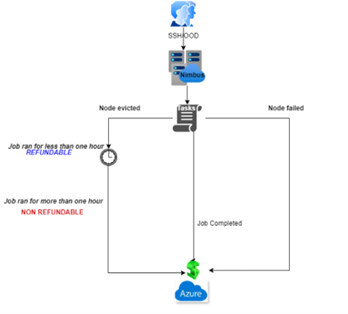
Users should use the Research Computing Cost Estimator (RCCE) to calculate compute costs (please note that the estimator only includes the instances available in Nimbus). A finance check is carried out on the project balance before a job is submitted, and charges are then applied as follows:
- Job completed successfully: the cost is deducted from the project account.
- Node evicted: the University covers the cost if the job had run for less than one hour. For more than one hour, the cost is deducted from the project account.
- Job failed: the cost is deducted from the project account.
Restrictions on Instances
The only restriction Research Computing places on the size of jobs you can run on Nimbus is that jobs using the fsv2 instances are limited to one node. These instances are not RDMA connected, so single jobs cannot run efficiently across multiple nodes, hence the restriction.
All other restrictions are set by your Resource Allocation Administrators in the finance portal. If you need a restriction changed, either change it in the portal yourself or ask the person who gave you access to the resource allocation to do so.
Separately, Azure itself may limit the availability of some instance types, particularly on the spot tier (see Caveats when using spot above).
Indicative Cost of Instances
It is important to emphasise that different compute instances will incur different costs.
A cost calculator has been launched that lists the current prices for each compute instance, as well as allowing you to cost up resources for inclusion in funding proposals.